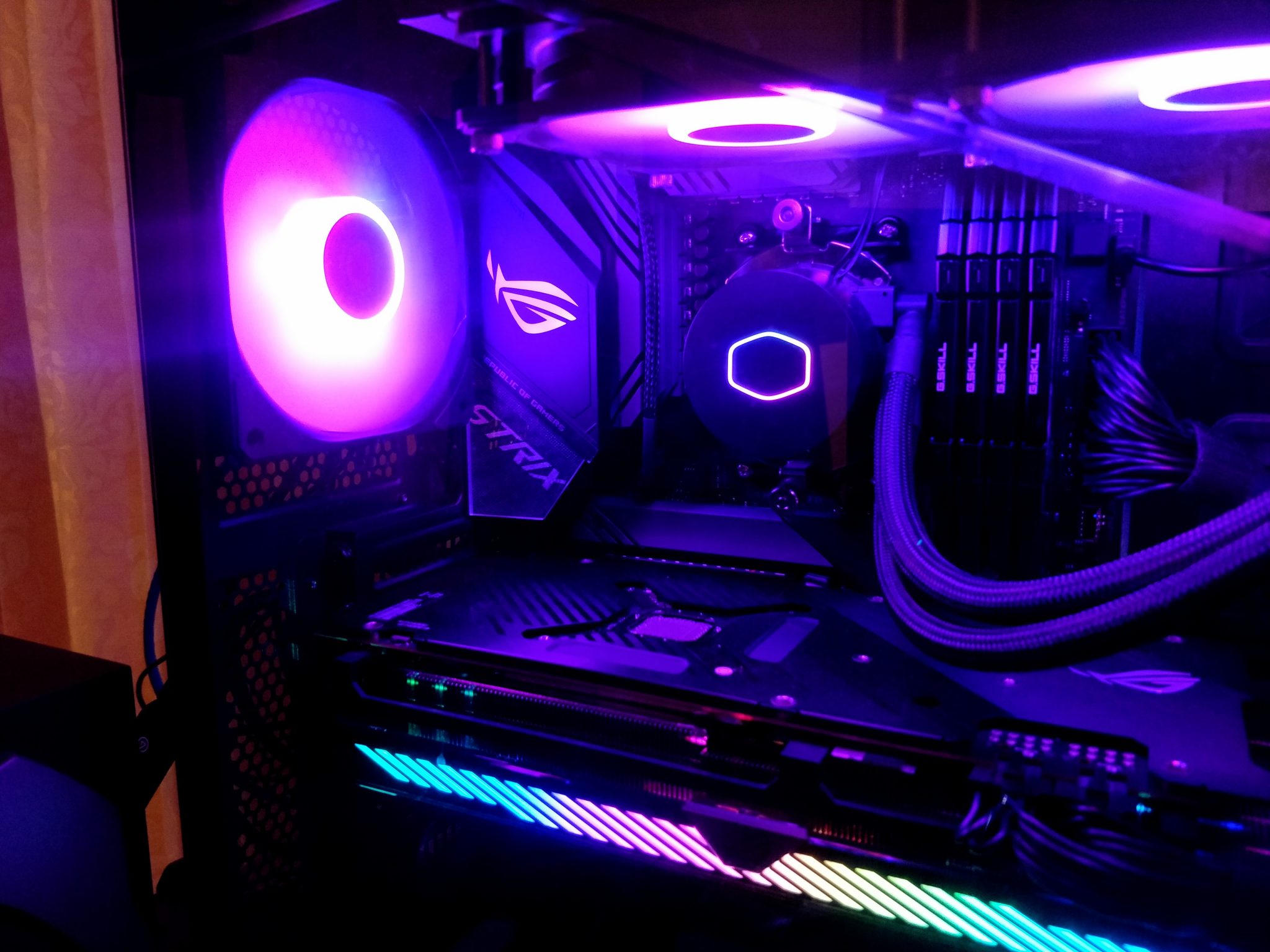
The Basics of PC Maintenance: Keeping Your System Running Smoothly
PC maintenance is boring in the way good insurance is boring: you do it before the problem arrives, not after the machine starts asking for attention in louder and more expensive ways.
Regular maintenance keeps a PC cooler, faster, and less unpredictable. The work is straightforward. Remove dust, keep software current, free up storage, and watch for early warning signs before they become a repair bill or a weekend lost to troubleshooting. Microsoft’s Windows Update FAQ is a useful reminder that updates are part of normal upkeep, not a side quest.
That simple routine matters whether the machine is a gaming rig, a family desktop, or the office PC nobody wants to touch until it misbehaves. If the system has to keep working, someone has to keep the system in order.

Why PC Maintenance Matters
PC maintenance does three things that are easy to understand and easy to postpone:
- It reduces heat: dust blocks airflow, which makes fans work harder and components run hotter.
- It prevents small problems from stacking up: outdated drivers, full drives, and startup clutter slowly turn into slow boots and unstable behavior.
- It extends component life: cooler parts and cleaner software usually last longer than neglected ones.
“Maintenance” here means both hardware and software. Hardware maintenance is the physical side: dust removal, cable management, and fan checks. Software maintenance is the digital side: updates, cleanup, security scans, and startup control. The terms sound different because they are. The outcome should be the same: a PC that behaves like a tool, not a rumor.
Regular Cleaning Tips
Cleaning a PC is not about making it look new. It is about keeping air moving and connectors free of grime.
Start with safe dust removal
Shut the computer down, unplug it, and move it to a place with good light. Use short bursts of compressed air to clear vents, fans, and heat sinks. Hold fan blades still while cleaning them so they do not spin wildly and wear themselves out for sport.
- Clean front intake filters first.
- Clear rear exhaust vents and the power supply intake.
- Brush loose dust away from GPU and CPU cooler fins.
- Wipe the case exterior, keyboard, and desk area while the machine is open.
For laptops, focus on the vents and keyboard surface. Do not blast dust deeper into the chassis and call it progress.
Keep cables out of the airflow path
Cable management is not a design contest. It is a practical way to keep air moving through the case and to make later maintenance easier. Route power and data cables away from fans, secure loose runs with ties, and leave enough slack that you can remove a drive or GPU without stripping the whole case first.
Make cleaning software part of the same routine
Software cleanup is the digital version of dust removal. Remove temporary files, empty the recycle bin, and uninstall apps you no longer use. Microsoft’s guide to freeing up drive space in Windows covers the basics well. If the drive is nearly full, the PC will usually get slower before it gets helpful.
Software Maintenance
Software upkeep is mostly about consistency. Ignore it for long enough and the machine starts collecting little problems like receipts in a jacket pocket.
Keep the operating system and apps updated
Operating system updates fix security issues, improve compatibility, and sometimes correct performance bugs. App updates matter too, especially for browsers, drivers, launchers, and communication tools. If a program asks to update itself, that is usually a sign it knows more than you do about its own defects.
Use update settings that fit the machine’s role. A home PC can usually install updates overnight. A work machine may need a tighter schedule, but it still needs updates. Stale software is not a strategy.
Trim startup programs
Startup programs are apps that launch automatically when Windows starts. Too many of them can slow boot time and make the desktop feel busy before you have even opened anything. Microsoft’s startup app guide shows how to disable the ones you do not need.
A simple rule works well here: keep security tools and hardware utilities, then disable anything that only saves you one click and costs you thirty seconds at every boot.
Use antivirus and security checks
A good antivirus or built-in security suite should run quietly in the background and scan regularly. Windows Security also includes a device performance and health view that helps surface basic system issues before they get worse.
Security is part of maintenance because malware, unwanted browser extensions, and broken background software all affect performance. A PC does not care whether the slowdown came from dust or from bad code. It just slows down.
Leave enough free storage
When a drive gets too full, Windows has less room for updates, temporary files, and normal system tasks. Keep some headroom on the main drive, especially on systems with smaller SSDs. As a rule, if the drive is constantly near capacity, the machine will start behaving like it is tired.
Monitoring System Performance
You do not need a lab bench to notice when a PC is going off script. You need a few signs, a few tools, and the discipline to check them before the machine gets worse.
Watch for the usual warning signs
- Boot times are getting noticeably longer.
- Fans are louder than they used to be under the same workload.
- Games or apps crash after updates or heavy use.
- The system shows storage warnings or update failures.
- The PC feels slower even when you are not asking more from it.
None of those signs proves a major failure. Together, they usually mean the machine needs a closer look.
Use monitoring tools with a purpose
For a quick health check, HWiNFO is a practical system monitor for temperatures, fan behavior, and component status. For memory testing, MemTest86 is a long-standing option when you suspect RAM trouble or intermittent crashes.
If you want to keep the process simple, check these three numbers first: CPU temperature, drive free space, and startup load. That alone will catch a lot of avoidable problems.
| Symptom | What it usually means | First action to take |
|---|---|---|
| Slow boot | Too many startup apps or a nearly full drive | Disable unneeded startup items and free up space. |
| Loud fans | Dust buildup or higher-than-normal heat | Clean vents and check airflow. |
| Random crashes | Driver issue, unstable memory, or security conflict | Update software and run a memory test. |
| Low disk warnings | Storage is too full for normal operation | Remove temporary files and uninstall unused apps. |
A Simple Maintenance Routine
A good routine does not need to be elaborate. It needs to be repeatable.
- Weekly: clear downloads, close unused apps, and check for obvious warnings.
- Monthly: clean dust filters, review startup apps, and make sure updates installed successfully.
- Quarterly: inspect cables, check drive space, review temperatures, and run a deeper diagnostic if anything feels off.
If the checklist needs a better home than a sticky note, a web app generator can be a practical way to prototype a simple maintenance tracker for a household or small office.
Conclusion
PC maintenance is not complicated. Keep dust out, keep software current, keep storage under control, and watch for early signs of trouble. That routine will not make a computer immortal. It will make it much less dramatic, which is usually the better business case.
For more site navigation and related reading, visit the home page or continue through the blog archive.