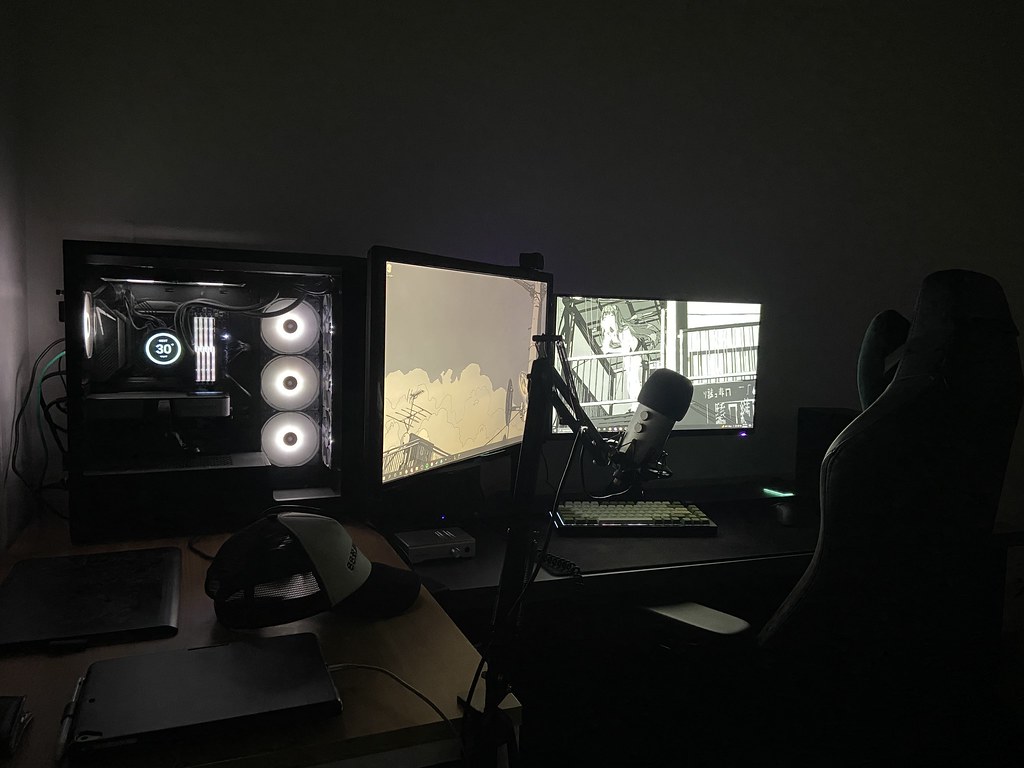
Understanding the Role of Firmware in Hardware Performance
Firmware is the part of your hardware you can’t ignore-because it controls how the device starts, negotiates, and behaves under load.
When you’re searching for “why did my system change after an update?” three questions usually come up: What counts as firmware? How can firmware affect performance if the hardware hasn’t changed? When is it safe to update? As the old rule goes: the method matters more than the guess.
According to research and long-standing industry documentation, firmware is the device-level software that runs close to hardware and can influence initialization, compatibility, and power behavior-so the rationale for updates isn’t just marketing. A practical overview of firmware as a concept is available here: firmware overview (Wikipedia). For a grounded look at platform firmware concepts (like UEFI), see Microsoft Learn on UEFI background.
In this guide, you’ll learn what firmware does, the specific ways it can affect real performance, how to update safely, and which firmware problems show up most often-so you can make a clean decision when the release notes land.
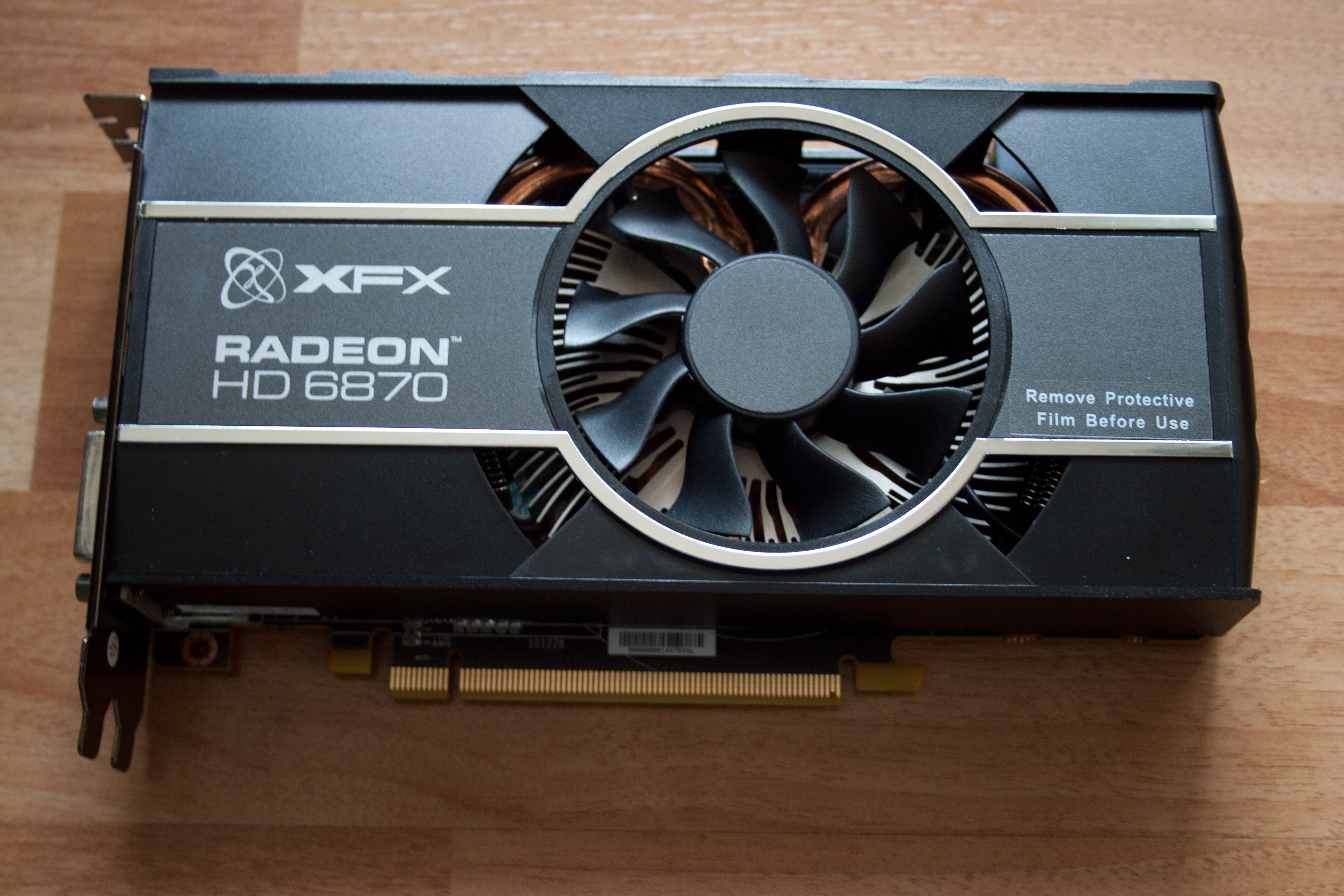
What is Firmware?
Firmware is the software permanently (or semi-permanently) stored on a device-such as a motherboard, graphics card, SSD, router, or network adapter-that helps it start, communicate, and follow hardware-specific rules. If hardware is the body, firmware is the set of instructions that teaches it how to behave.
In practice, firmware handles tasks like initializing components at boot, exposing device capabilities to the operating system, managing low-level power states, and implementing features such as PCIe negotiation, fan control behavior, or memory training. Because firmware sits closer to the hardware than the drivers do, updates can change behavior even when the operating system stays the same.
How Firmware Affects Performance
Performance isn’t only about raw specs. Firmware choices can influence stability, latency, throughput, and the conditions under which performance targets are reached. Here are the most common ways firmware affects real hardware behavior.
1) Initialization and training
Modern systems perform a lot of “training” during startup-memory timings, link negotiation, and other calibrations. A firmware update can change algorithms, default settings, or tuning parameters that determine how reliably the system reaches its intended speed.
- What you may notice: the system boots more reliably, profiles apply correctly, fewer crashes under load.
- Performance angle: stable training often means the device can sustain higher clocks or lower wait states.
2) Power management behavior
Firmware controls many power states and how devices respond to workload transitions. That affects turbo boost behavior, idle efficiency, and how quickly performance ramps up when you switch tasks.
- What you may notice: different fan curves, fewer throttling spikes, or improved responsiveness in burst workloads.
3) Device compatibility and reduced overhead
Firmware mediates compatibility-how the device identifies itself, how it speaks to the rest of the system, and which features it advertises. Improved compatibility can reduce fallback modes that cost performance.
- What you may notice: fewer “link running at x1 instead of x16” situations, smoother PCIe behavior, improved storage/USB responsiveness.
4) Bug fixes that remove real-world performance cliffs
Sometimes the “performance problem” is really a bug-memory errors, thermal management issues, firmware handshake failures, or edge-case interactions. Firmware patches can remove those cliffs.
- What you may notice: fewer stutters, better frame-time consistency, or steadier storage write performance.
Updating Firmware: When and Why
Firmware updates aren’t something you chase every week. Think of them as part of operational maintenance: update when the change has a clear reason and you can follow the vendor’s process safely.
When an update is worth your time
- You have a specific problem: instability, boot failures, corrupted storage behavior, device disconnects, or known bugs your vendor has acknowledged.
- You’re adding new hardware: new GPU, new SSD, new peripherals, or a platform change where compatibility matters.
- The vendor lists performance/stability improvements: especially for power management, memory/PCIe training, or thermals.
- You’re doing a preventive maintenance cycle: for example, after major operating system upgrades or when you’re already preparing backups and diagnostics.
When you should pause
- You can’t recover if something goes wrong: no backup power plan, no safe recovery method, or no way to restore the previous firmware.
- You’re on critical production hardware: schedule changes for a maintenance window, not “right now.”
- The update notes are unclear: if the vendor doesn’t describe what changed, treat it as higher risk.
A safe process (practical checklist)
- Read the release notes first. Identify what’s fixed, what’s improved, and what prerequisites exist.
- Download only from the manufacturer. Avoid third-party “mirrors” or mislabeled files.
- Back up what matters. For PCs, save configurations. For storage devices, follow the vendor’s guidance.
- Use the correct updater method. Some devices require a specific tool or boot media.
- Preserve power and stability. Use a UPS for desktops where practical.
- Re-test after the update. Boot normally, verify settings, then run your typical stability/usage checks.
If you want a broadly applicable reference on firmware-level concepts that underpin safe update thinking, the UEFI background from Microsoft is a solid starting point: Microsoft Learn: UEFI.
Common Firmware Issues
Firmware problems usually show up in predictable categories. Knowing what bucket you’re in helps you choose the right fix-update, revert, or troubleshoot without making things worse.
1) Incomplete updates and interrupted flashing
If power drops mid-update, a device may fail to boot correctly. Many devices include recovery mechanisms, but not all. That’s why the safe process matters.
2) Compatibility issues after an update
Sometimes newer firmware changes how the device negotiates with other hardware. If you updated during a hardware change, isolate what triggered the issue before retrying.
3) Feature regressions
An update can fix one problem and accidentally disable or change a feature (for example, a tuning profile, a fan curve behavior, or a storage mode). When release notes are vague, test the specific features you rely on.
4) “Driver fixed it” misconceptions
Drivers and firmware are linked but separate. If behavior changes only after the firmware update, the driver likely wasn’t the root cause. If drivers alone didn’t help, firmware might be the missing lever.
Conclusion
Firmware is the hidden layer that helps hardware start correctly, negotiate compatibility, manage power, and deliver consistent behavior under real workloads. When firmware improves initialization, power management, and bug fixes, performance can follow-even if the specs didn’t change.
Do this next: pick one device where you’ve observed a real issue (stability, compatibility, noise, or responsiveness). Check the manufacturer’s release notes, confirm the updater method, back up what you can, then update during a controlled window and re-test.