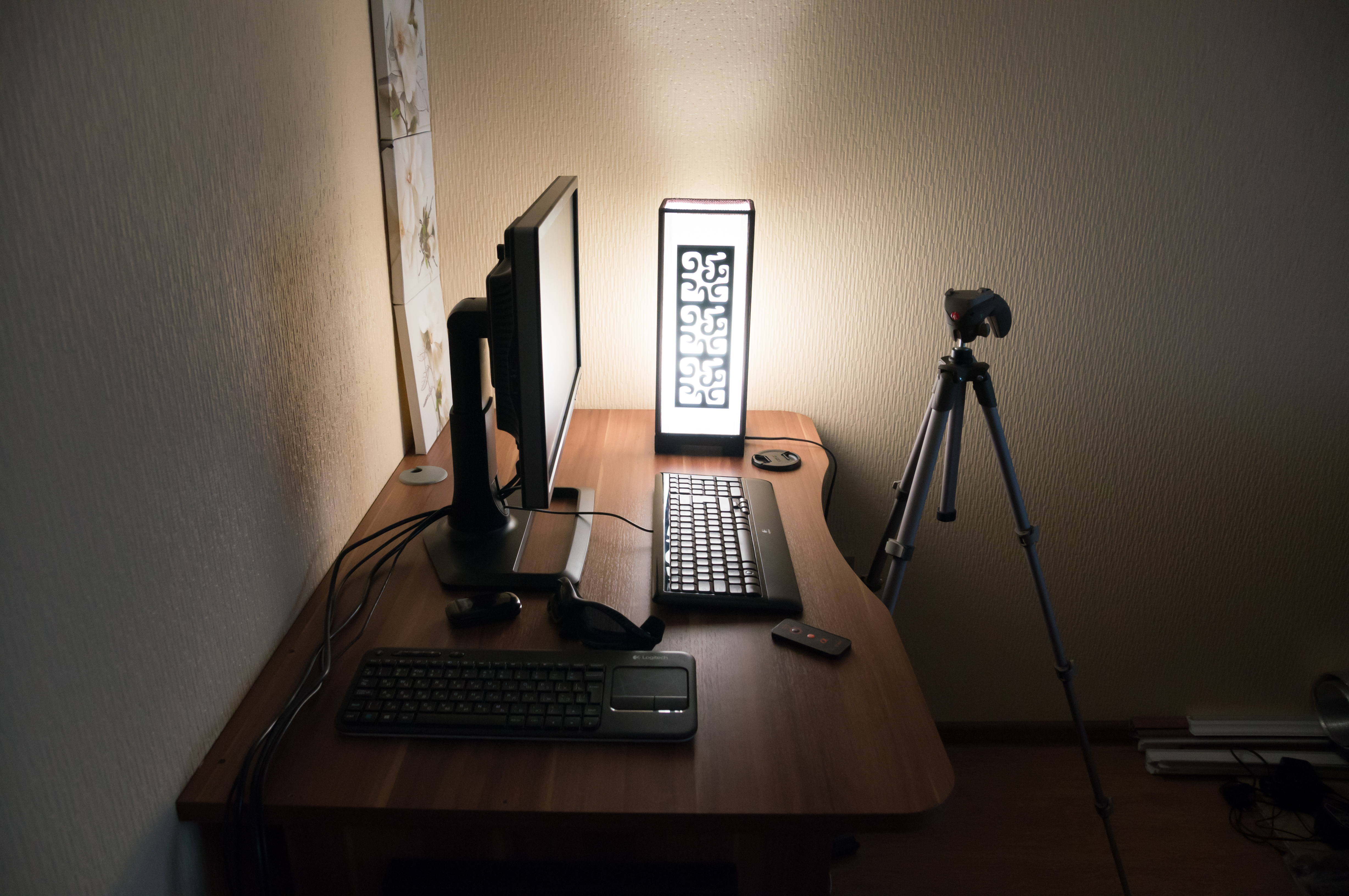
Building a Home Office: Essential Tech for Productivity
There is a very specific kind of relief that comes from a home office that actually works. You sit down, open the laptop, and the room stops arguing with you. No cable hunt. No chair drama. No eye strain from a screen that sits too low. Just a desk that disappears into the background so the work can come forward.
When people search for a better home office, they usually ask the same few questions: What should I buy first? What can I skip? How do I keep the setup useful after the first week, when the new-chair glow wears off and the real routine begins? If that sounds familiar, you are in the right place. For the formal version of the ergonomics conversation, the OSHA computer workstation guide and the CDC/NIOSH ergonomics resources both point to the same basic idea: the setup should fit the body, not the other way around.
I like the plain version of this topic. A productive home office is not really about having the most gear. It is about lowering friction in the places where friction shows up every day: screen height, typing comfort, sound quality, lighting, storage, and the little software chores that steal attention in tiny slices. Those slices add up. That is why a good setup is less about decorating a desk and more about building a small system that saves energy on purpose.
Here is what this guide will cover: the hardware that actually matters, the software stack that keeps work moving, the ergonomic details that make long sessions bearable, and a simple starter map for different budgets. If you want to explore the rest of the site while you read, the Home page and the Blog index are the easiest places to start.
A quick map of the setup
Before I get into shopping lists, I like to define the terms. A lot of home-office confusion comes from people mixing up the computer, the display, the input tools, and the software layer that sits on top of all of it. Once those parts are separated, decisions get much easier.
| Part | What it does | Why it matters |
|---|---|---|
| Computer | The laptop or desktop that runs your work | Controls speed, multitasking, and display support |
| Monitor | The screen you actually look at all day | Sets your posture, readability, and visual comfort |
| Keyboard and mouse | Your main input tools | Shape wrist comfort and how fast small tasks feel |
| Audio and camera | Headset, microphone, webcam | Decides whether meetings sound professional or like a kitchen fan documentary |
| Network and power | Router, Ethernet, battery backup, surge protection | Keep the work from disappearing in the middle of a save |
| Software | Notes, tasks, calendar, backups, password manager | Turns the desk into a usable workflow instead of a pile of open tabs |
The short answer is that a home office works best when it has one primary computer, one comfortable screen setup, one reliable way to talk to people, and one clean system for files and tasks. Everything else is optional until it solves a real problem.
Essential hardware
1. Start with the computer you already have, then fix the bottlenecks
If your current laptop still runs the apps you need, do not rush to replace it. A lot of productivity gains come from the parts around the computer, not the computer itself. That said, if your machine struggles with video calls, browser tabs, or large files, the slowdown becomes part of your workday whether you notice it or not. In that case, a newer laptop or a modest desktop can be the cleanest upgrade because it removes the constant background waiting.
For people who move between rooms or work in more than one location, a laptop plus dock is often the best balance. For people who stay at one desk most of the time and care about comfort, a desktop with a larger monitor can be easier to live with. The right answer is the one that keeps your day moving without making you think about battery percentage every thirty minutes.
2. Buy the monitor for your eyes, not for the marketing brochure
If there is one upgrade that changes the feel of a home office fast, it is a good monitor. A larger display reduces tab juggling, makes text easier to read, and lets you keep reference material open beside your main work. For many people, one 27-inch monitor is enough. For heavier multitaskers, two monitors can be useful, but only if the desk has room and the second screen does not force awkward neck turns.
I would prioritize these monitor traits in order: size you can sit comfortably with, sharp text, simple stand height adjustment, and enough brightness to handle a daylight room. If you write, edit, code, or live in spreadsheets, the monitor is the piece of gear that quietly pays you back all day.
3. Use a keyboard and mouse that reduce effort instead of adding it
Typing and pointing are the two motions that repeat constantly, which is why small comfort differences matter. A keyboard with a stable feel can reduce that end-of-day stiffness that shows up in your shoulders and hands. A mouse that fits your grip can help just as much. Some people do well with a compact wireless set. Others prefer a full-size keyboard and a more substantial mouse. The point is not to chase the fanciest accessory; it is to stop noticing your wrists every hour.
If you use a laptop as your main computer, a separate keyboard and mouse are almost always worth it once you begin using the laptop on a stand or dock. That allows the screen to come up to eye level while your hands stay in a more natural position. It is a simple trick, but simple is not the same thing as trivial.
4. Do not treat audio and video as afterthoughts
Video meetings are now part of normal work for many people, which means the microphone, webcam, and headphones are no longer luxury add-ons. A decent headset cuts down on echo and makes speech clearer. A simple external webcam usually gives a cleaner image than the built-in camera on many laptops. If you spend a lot of time on calls, this is the place where “good enough” saves you from sounding distracted when you are not actually distracted at all.
- Headset: Useful if you take calls in a shared space or near noise.
- Microphone: Helpful if you lead meetings, record audio, or present often.
- Webcam: Worth it if your laptop camera makes you look like you are broadcasting from a cave.
5. Protect the work with power and network basics
Productivity tends to get romanticized, but one of the most practical upgrades is also one of the least glamorous: dependable power and internet. A surge protector is the floor. A battery backup or UPS is better if outages or flickers are common in your area. For network quality, Ethernet is still the gold standard if your desk is close enough to wire directly. If not, a strong Wi-Fi setup with a well-placed router is still fine, but it is worth testing before you blame the laptop for every dropped call.
I treat this as the boring-but-important layer. The desk can be beautiful and the chair can be perfect, but if the connection drops during a meeting or a file upload gets cut off, your setup will feel fragile. Stability matters.
6. Add storage and cable management before clutter gets a vote
Cable management is not aesthetic trivia. It is a way of making your workspace easier to clean, easier to move, and easier to understand at a glance. A small cable tray, a few Velcro ties, and a place for chargers can turn a busy desk into a calm one. Likewise, a drawer organizer or small shelf keeps notebooks, adapters, and spare drives from spreading out like they own the place.
The goal is not perfection. The goal is to prevent one missing cable from becoming a twenty-minute search that breaks your focus before the work day has even earned its first coffee.
Software recommendations
Hardware gets most of the attention because it is visible, but software is what turns the desk into a workflow. The best home office software is boring in the right way. It should help you remember things, find things, and finish things without forcing you to build a new personality around productivity.
1. Use a browser setup that does not turn into a tab avalanche
The browser is the front door for most work now. It is where documents live, where messages pile up, where research happens, and where half-finished ideas go to wait awkwardly in open tabs. That makes browser discipline more important than most people expect. Profiles, bookmarks, and pinned tabs can keep work and personal tasks from constantly colliding. If your browser makes it hard to tell what matters right now, it is already costing you time.
2. Pick one task system and one note system
There are plenty of apps that promise to change the way you work. Most of them do not change the way you work. They simply add another place to look. The better move is to choose one task manager and one note system, then keep them lightweight. The task manager holds the next action. The note system stores the thinking. When those two roles are clear, your desk stops feeling like a mystery novel with no detective.
3. Make calendar and communication visible without making them noisy
Calendar alerts should help you arrive prepared, not make you feel ambushed by your own day. Communication tools should surface what needs attention without demanding that every message becomes a crisis. That usually means turning off unnecessary notifications, grouping alerts by importance, and checking messages on a schedule instead of letting them interrupt every fifteen seconds. A home office gets more productive when the software reduces surprise.
4. Back up files and protect passwords
A home office has enough moving parts already. Losing a document or resetting a password at the wrong time is exactly the kind of small disaster that can derail a whole morning. A cloud backup, a local backup, and a password manager are the three basics I would not skip. They are not exciting. They are also the reason a computer mistake stays small instead of becoming a full-on headache.
5. Add automation only where it cuts repeat work
If a desk setup starts to include recurring admin work, a neutral third-party resource like AI consulting services can help sort out which repetitive tasks are actually worth automating. That matters because not every repetitive task deserves a tool. Sometimes a simple template, rule, or form is enough. The best automation is the kind that saves attention without creating a new maintenance hobby.
That same rule applies to any software stack. If a tool requires daily babysitting, it is not really a productivity tool yet. It is a new job title.
Ergonomics and comfort
This is the part that people often postpone until they feel the consequences. The good news is that you do not need a studio-grade ergonomic setup to feel better. Small changes matter. A screen at the right height. A chair that lets your feet rest. A desk that does not force your shoulders upward. Comfortable lighting. That is the framework.
Screen height and seating
A useful rule of thumb is that the top of the monitor should sit close to eye level, with the screen at a distance where you can read without leaning forward. If that sounds obvious, good. Obvious things are often the cheapest upgrades. A laptop stand, a monitor arm, or a stack of sturdy books can solve a surprising amount of posture friction.
Chair height matters too. Your elbows should feel relaxed when your hands are on the keyboard, and your feet should rest comfortably on the floor or a footrest. If you are reaching up to the desk or sinking too low into the seat, the rest of the day will feel louder than it needs to.
Lighting and glare
Bad lighting is one of the sneakiest productivity drains because it does not announce itself like a broken cable. It just makes your eyes work harder. Daylight is excellent until it reflects directly onto the screen. A small desk lamp with warm, even light can balance the room nicely. If a monitor catches glare, shift the angle before you blame your concentration. Sometimes the room is not too bright; it is just pointed the wrong way.
Noise and focus
Some home offices are quiet. Some are not. Neither is automatically a problem if you plan for it. Headphones help with neighbors, roommates, or the occasional mower that sounds personally offended by your calendar. If silence is your best focus tool, use it deliberately. If you work better with a little background noise, that is fine too. The point is to choose the sound environment instead of reacting to it all day.
A simple comfort checklist
- Screen at a comfortable height.
- Keyboard and mouse within easy reach.
- Feet supported without sliding.
- Enough light to read without squinting.
- Cables out of the way of your legs and chair.
- A drink within reach so you do not keep inventing excuses to leave the desk.
A practical starter kit
If I were building a home office from scratch, I would think in tiers rather than in one giant purchase. That makes the setup less intimidating and helps each piece earn its place.
| Tier | What to prioritize | What to delay |
|---|---|---|
| Minimum useful | Decent laptop, external keyboard and mouse, one monitor, headset, surge protector | Extra monitor, dock, fancy chair, extra accessories |
| Balanced setup | Good monitor, stable chair, laptop dock, webcam, cable management, task manager, backup plan | Specialty accessories that only solve rare problems |
| Long-session setup | Ergonomic chair, larger or dual monitors, quality microphone, UPS, wired internet, adjustable lighting | Anything that adds clutter without a clear benefit |
There is no prize for buying everything at once. In fact, the slower approach is often better because it lets the room teach you what it needs. I would rather learn that I need a better chair after two weeks of actual work than after a weekend of optimistic shopping.
What usually makes the biggest difference first
- Fix the screen height. This often improves posture immediately.
- Upgrade the keyboard and mouse. Small comfort gains repeat all day.
- Improve audio for calls. Fewer meeting headaches, less self-consciousness.
- Set up backups. Quiet confidence is a productivity tool.
- Clean up the desk surface. A less crowded desk makes starting easier.
That list is not glamorous, and that is exactly why it works. Most home-office frustration comes from repeated tiny annoyances, not one dramatic failure. Remove a few of those annoyances and the whole room becomes easier to use.
Conclusion
A productive home office is really a chain of small decisions that stop work from leaking away in awkward little pieces. The right computer matters, but so do the monitor, the keyboard, the chair, the light, the call setup, and the software that handles the unglamorous parts of the day. When those pieces fit together, the desk stops feeling like a project and starts feeling like a place where work can actually happen.
If you want the plain version of the advice, it is this: buy comfort before novelty, buy stability before extras, and make sure each tool removes friction instead of adding more of it. That is how a home office becomes productive without turning into a second hobby.
Key takeaways:
- Start with the bottlenecks you feel every day.
- Use one strong monitor and comfortable input devices before chasing upgrades.
- Keep software simple: tasks, notes, calendar, passwords, backups.
- Take ergonomics seriously; small changes can pay off fast.
- Build the room in stages so each purchase solves a real problem.
If you are ready for the next step, start with one fix this week. Move the monitor, change the chair height, or tame the cable mess. Then see what the room tells you.