How to Setup a Dual Monitor Gaming System
Dual monitors turn “one quick glance” into a real workflow.
If you’re trying to game on a second display without turning your setup into a mess, you probably have these questions:
- Do I need the same resolution and refresh rate on both monitors?
- How do I route audio and keep it from switching at the worst time?
- What settings actually reduce input lag and stutter in games?
- How should I arrange the displays so the cursor and HUD behave logically?
Research and vendor documentation on multi-display setups consistently emphasize two things: correct signal routing and synchronization matter, and “it works on paper” setups often break due to power/driver configuration. For a solid baseline, see Microsoft’s guidance on setting up multiple displays and NVIDIA/AMD documentation for display configuration and refresh behavior (sources below).
By the end, you’ll have a practical checklist to choose hardware, connect everything the right way, configure Windows (or your OS), and tune game settings so dual-monitor gaming feels intentional-not accidental.
Table of contents
Benefits of Dual Monitors
Dual monitors are not about “more screen.” They’re about reducing context switching while you play. In practice, that means:
- Better game + utility split: keep your game fullscreen (or borderless) while chat, guides, maps, or benchmarks live on the second display.
- Cleaner workflow: move the browser to the side monitor, preview clips or loadouts, and leave the primary display dedicated to aiming and action.
- More stable streaming: recording software and streaming dashboards can sit on a secondary screen without stealing attention.
Dry business joke, but true: when your setup is predictable, your performance is more repeatable.
Hardware Requirements
You don’t need matching monitors, but you do need predictable display behavior. Focus on these requirements:
1) A GPU with the right ports
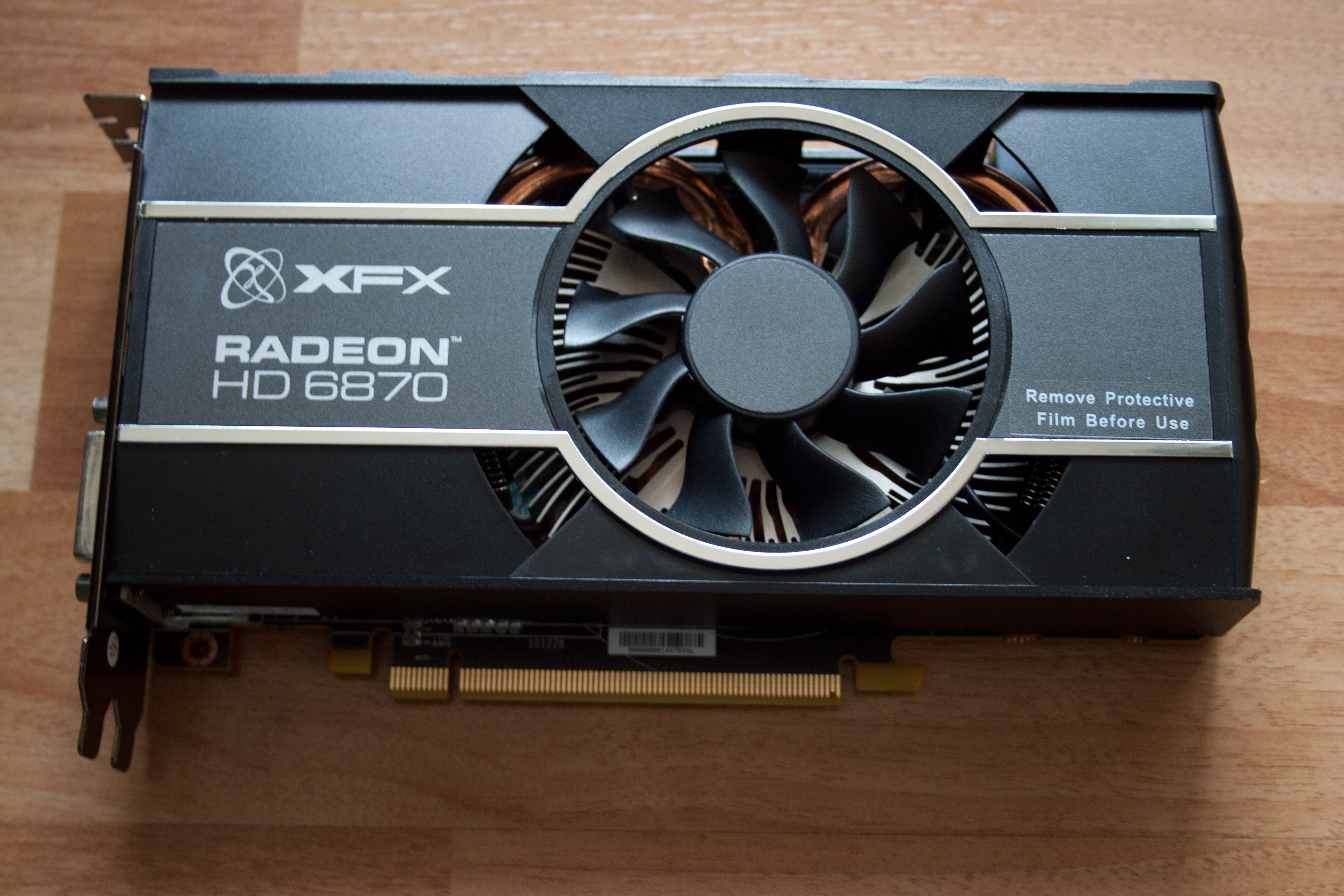
Check how many displays your graphics card can drive, and what connection types it supports (DisplayPort, HDMI, USB-C/DP alt-mode). If your GPU has multiple outputs, you can typically run two monitors from it without overcomplicating the build.
2) Cables that match the signal
Use high-quality cables that support the resolution and refresh rate you want. If you’re targeting higher refresh (120Hz/144Hz), don’t assume “any HDMI cable works.”
3) Display settings you can control
Look for monitors that provide:
- Adjustable refresh rate (or at least the ability to set a fixed refresh)
- Game modes
- Basic color/brightness controls so your second screen doesn’t create eye strain
4) Optional-but valuable-audio routing
If your monitors have speakers or headphone outputs, decide early how you want audio to behave. In gaming, random audio device switching is an annoyance tax you’ll pay every session.
Setup Process
Do this in order. Order reduces surprises.
Step 1: Connect monitors to the GPU (not the motherboard)
For most gaming PCs, run both displays from the dedicated graphics card outputs. Plugging into the motherboard can force the wrong graphics path, especially on systems without integrated graphics behavior you expect.
Step 2: Power on and detect displays
On Windows, open Settings > System > Display and click Detect. Confirm both monitors show up.
Step 3: Arrange displays and set the right primary
- In the display arrangement diagram, place Monitor 1 and Monitor 2 so the cursor moves naturally left/right.
- Choose your primary display as the one you want to anchor menus, desktop icons, and-most importantly-your gaming workflow.
Step 4: Set resolution and refresh rate intentionally
Pick resolution and refresh rate per monitor. If one monitor is 60Hz and the other is 144Hz, that’s usually fine-just make sure each is set to what it supports. Then restart the game once to confirm it behaves as expected.
Step 5: Configure audio output (if needed)
For Windows, set default output in Settings > System > Sound. If you stream or record, confirm your headset/output device is selected before you launch the game.
Step 6: Use the right display mode in games
Most dual-monitor gamers pick between:
- Fullscreen exclusive: often best for latency on supported setups, but may conflict with alt-tabbing.
- Borderless fullscreen: easier to switch windows and manage guides/music; can be slightly different in latency depending on the game.
Your job is to test one game you care about. Don’t guess based on settings from a different title.
If you want authoritative OS guidance on multi-display setup, start with Microsoft’s display settings documentation: Change the display settings in Windows.
Adjusting Settings for Optimal Use
Once your displays are connected, the real work is making the gaming experience consistent.
1) Keep the cursor and overlays predictable
During a match, the biggest quality-of-life issue is accidental clicks on the secondary screen. Reduce it by:
- Placing game-critical UI on the primary monitor
- Moving overlays (chat, voice, browser tabs) to the secondary monitor
- Turning off unnecessary desktop notifications while gaming
2) Tune refresh rate settings in your GPU control panel
Depending on your GPU vendor, the control panel may include options for refresh behavior (and features that can affect stutter). Verify that each monitor uses the refresh rate you expect and that any “adaptive” modes are configured how you prefer.
For NVIDIA users, NVIDIA’s documentation for display configuration is a good reference point: NVIDIA GeForce FAQs. (Look for sections relevant to display behavior and multi-monitor settings.)
3) Align in-game settings with your main monitor
In games, there’s usually a “display” selector. Choose the monitor that is your primary gameplay screen. Then set:
- Resolution to match the primary monitor’s native resolution
- Fullscreen mode (exclusive vs borderless) based on your latency/alt-tab preference
- V-Sync / G-Sync / FreeSync options consistently (toggle one thing at a time during testing)
4) Use performance-friendly background behavior
Some setups reduce performance when you alt-tab or when another monitor is active. If you notice stutter when opening a second-screen app, try:
- Keeping the game on the primary monitor and minimizing alt-tab frequency
- Closing heavy background overlays (especially browser tabs with video)
- Testing with and without upscaling features
Conclusion
Dual-monitor gaming works best when you treat it like an operational system: choose compatible hardware, connect monitors to the correct GPU outputs, set resolution/refresh intentionally, then tune game display settings around your primary gameplay screen.
If you want a practical next step, do this:
- Pick your primary monitor and lock in its resolution/refresh.
- Confirm your game is running on that monitor.
- Test one fullscreen and one borderless mode, then keep the one that feels consistent.
For more gaming and PC guidance, visit the site’s main hub and blog index: MaximoNET and /blog/.
Note: Settings names vary by game and GPU driver. Make one change at a time, and keep a short notes log for what improves stability.