How to Choose the Right Graphics Card in 2026: A Practical Buyer’s Guide
Choosing a graphics card in 2026: start with the monitor, not the marketing
The right GPU is the one that fits your monitor, your case, your power supply, and your actual workload. That sounds obvious until you watch people buy an oversized card because a spec sheet looked heroic. The boring truth usually wins. If you game at 1080p on a 60 Hz display, a monster card is wasted. If you render video, a narrow memory bus and stingy VRAM can turn a “good deal” into a bad afternoon.

Before you buy, compare the current consumer lineups from NVIDIA’s GeForce comparison page and AMD’s Radeon desktop lineup. If you want the spec table behind the marketing, AMD’s graphics specifications page is the cleaner place to check memory and power details. NVIDIA’s RTX 50 Series overview explains the current GeForce family positioning without forcing you to decode a dozen launch slides.
Step 1: define your target resolution and refresh rate
Resolution is the first filter. It tells you how much work the card has to do every second. Refresh rate matters too, because a 1440p display at 165 Hz asks for a very different class of GPU than a 1440p office monitor at 60 Hz. If you mostly play slower single-player games, you do not need to pay for ultra-high frame rates you will never notice. If you play competitive shooters, consistency matters more than headline peak numbers.
- 1080p: Focus on efficient midrange cards and avoid overspending on features you will not use.
- 1440p: This is the crowded middle ground. Look for stronger memory capacity and enough raw throughput to hold frame rates steady.
- 4K: Expect bigger cards, more power draw, and more heat. The case and PSU are part of the product whether sellers admit it or not.
If you are unsure what the display can actually do, check your monitor manual or the manufacturer page. A good starting point is the current GeForce comparison chart, then map that against your own display target instead of buying by reputation.
Step 2: separate gaming, streaming, and creator workloads
Gaming is not content creation, and streaming is not the same thing as either. A card that feels fine in a game can still stumble when you add encoding, browser tabs, a voice chat stack, and a video timeline. If you edit video, work with 3D assets, or train small local models, you should care about memory capacity and software support as much as frame rates.
- Gaming first: prioritize game performance at your target resolution.
- Streaming or capture: check encoder support and whether your software stack prefers one vendor’s feature set.
- Creator work: prefer a card with enough VRAM headroom to avoid cache thrashing and timeline stutter.
For practical software-side context on how hardware choices affect workflows, the PCIe and GPU discussions in the blog index and related hardware guides are a useful place to compare tradeoffs before you spend real money.
Step 3: compare the current GPU families without worshipping the logo
The current landscape is straightforward enough. NVIDIA’s GeForce RTX 50 series sits at the top of the consumer stack, while AMD’s Radeon RX 9000 family is the current Radeon desktop line. That does not make one brand magically right for every buyer. It means you should compare the actual card tier, feature support, and power envelope against your use case.
Use the vendor pages as a starting point, not a religion. The important questions are still the same: Does the card match your monitor? Does your software like the vendor stack? Is the cooler oversized for your case? Does the PSU have the right connectors and enough headroom?
If you want a sanity check on old vs. current thinking, MaximoNET’s older articles on ASUS HD 7870 DirectCU II TOP Edition, ECS GTS 450 Black Series, and AMD Radeon HD 6870 are still useful as reminders that good cooling, sensible power use, and realistic expectations never went out of style.
Step 4: check VRAM, memory bus, and power requirements before buying
VRAM is not a scorecard trophy. It only helps when the workload needs it. Too little memory can crush performance in modern games, large textures, high-resolution video timelines, and AI-assisted workflows. Too much memory on a weak card is just an expensive sticker. Memory bus width and memory type matter too, but only in context. A simple rule: if the card looks cheap because the vendor cut memory capacity and power delivery to the bone, that is not a bargain. That is a trap wearing a discount tag.
| Use case | What to watch | What to avoid |
|---|---|---|
| 1080p gaming | Balanced performance, efficient power, modest VRAM | Oversized flagship pricing |
| 1440p gaming | Stronger VRAM headroom, stable boost behavior | Thin memory configs |
| 4K gaming | High power delivery, wide memory subsystem, serious cooling | Compact coolers that run hot |
| Creation / AI tools | VRAM, driver support, software compatibility | Buying only on raw game charts |
AMD’s specifications page is especially useful here because it lists the boring numbers that decide whether a card actually fits the job. Boring is good. Boring is how you avoid returns.
Step 5: match the card to your PSU, case size, and cooling
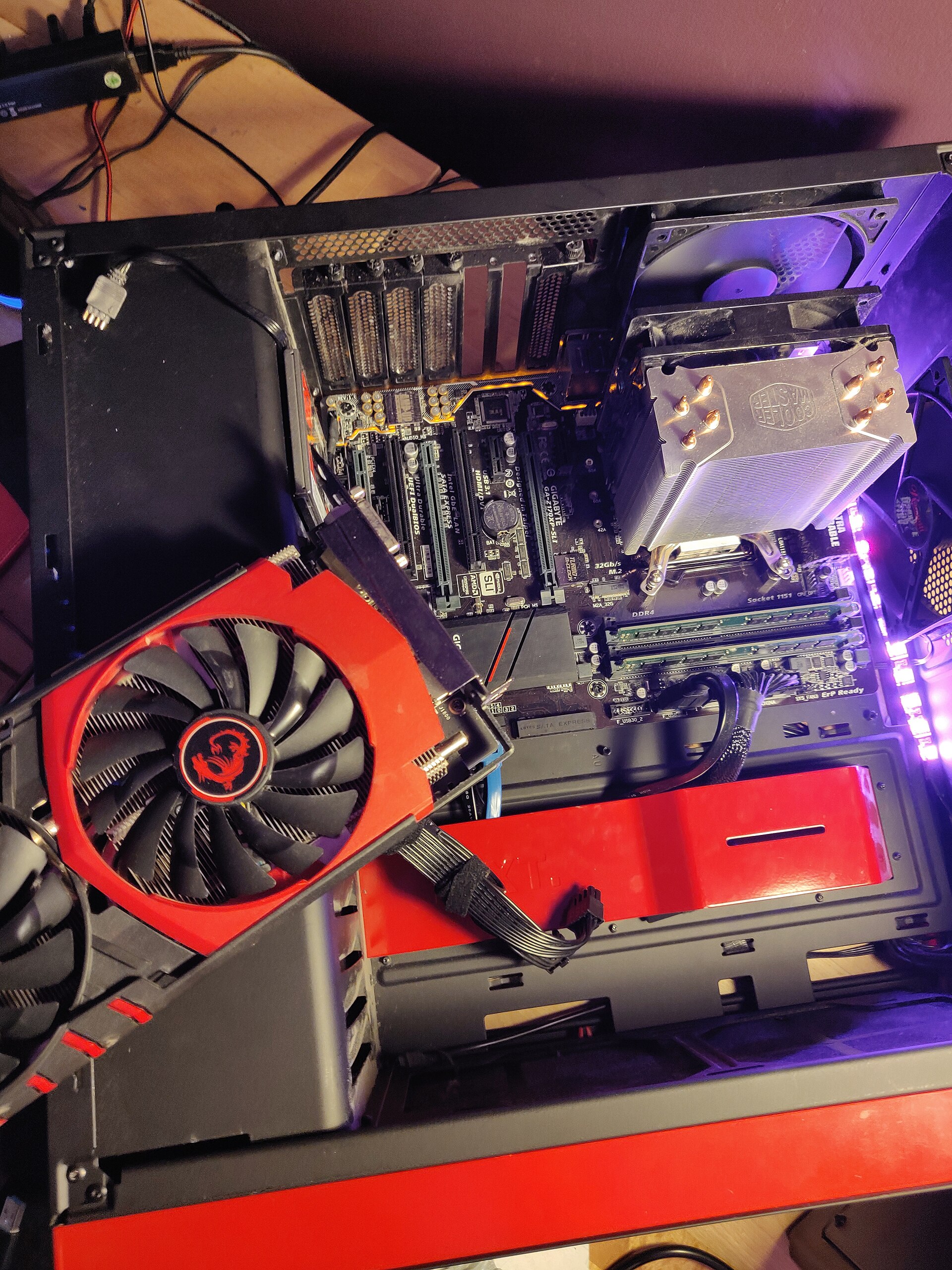
This is the part buyers skip and regret later. A GPU does not exist in isolation. Check three things before checkout: total board power, required connectors, and physical clearance. A compact case can turn an otherwise sensible card into a thermal headache. A weak power supply can make a “stable” build behave like a coin toss. If your PSU is old, cheap, or already near capacity, upgrading the GPU first is backwards.
- PSU headroom: leave enough overhead for transient spikes and aging.
- Case length: measure from rear bracket to the nearest obstruction.
- Airflow: a hotter card needs a case that can breathe without drama.
If you are building in a small chassis, sanity-check the cooler design before you buy. Big triple-fan cards can fit badly in mini towers and SFF cases. The retail page is not going to apologize when the side panel refuses to close.
Step 6: when an older GPU is still the smarter buy
New is not automatically better for every buyer. An older card can be the right answer if it gives you enough performance at a much lower price, especially for 1080p systems or secondary PCs. The smarter move is not “latest.” It is “enough, reliably, for less money.”
Older hardware makes sense when:
- you play lighter games at modest settings,
- your PSU cannot support newer power-hungry cards,
- your case only fits a shorter cooler,
- you are waiting for prices to normalize,
- you want the best used-value option and know the tradeoffs.
Just do not confuse “used bargain” with “invisible risk.” Age, wear, and support status are still real. That is how physics works when nobody is selling a dream.
Quick recommendation matrix
| Buyer type | Best fit | Why |
|---|---|---|
| 1080p gamer | Midrange current-generation card | Best price/performance balance |
| 1440p gamer | Upper-midrange card with decent VRAM | Enough headroom without flagship waste |
| 4K enthusiast | High-end card with strong cooling and PSU support | Resolution and settings demand it |
| Streamer | Card with solid encoder support and stable drivers | Capture and encode quality matter |
| Creator / AI hobbyist | VRAM-friendly card with good software support | Memory and compatibility matter more than slogans |
| SFF builder | Shorter, efficient model with careful power draw | Thermals and clearance decide the sale |
Simple checklist before checkout
- Confirm your monitor resolution and refresh rate.
- Check the software or games you actually use.
- Verify VRAM, power connectors, and total board power.
- Measure case clearance and airflow.
- Confirm your PSU has enough headroom.
- Compare current NVIDIA and AMD lineup pages, then buy the card that fits the job.
That is the whole trick. Not glamorous. Not mystical. Just the right card, in the right box, for the right workload. If you want the shortest version of the advice, it is this: buy for your monitor and your workload first, then check the power supply, then check the case. Everything else is retail theater.
Search more MaximoNET hardware guides if you want to compare older cards, legacy builds, or upgrade paths before you spend money you could have kept.